Rules
Answer routine requests in advance: always allow, never allow or always ask, with amount limits, budgets and two-person approval, and try a request to see what your rules would do.
Writing rules, budgets and amount limits requires Pro or above. Two-person approval requires Team. Routing and escalation require Business. Existing rules keep applying after a downgrade; owners can always delete them.
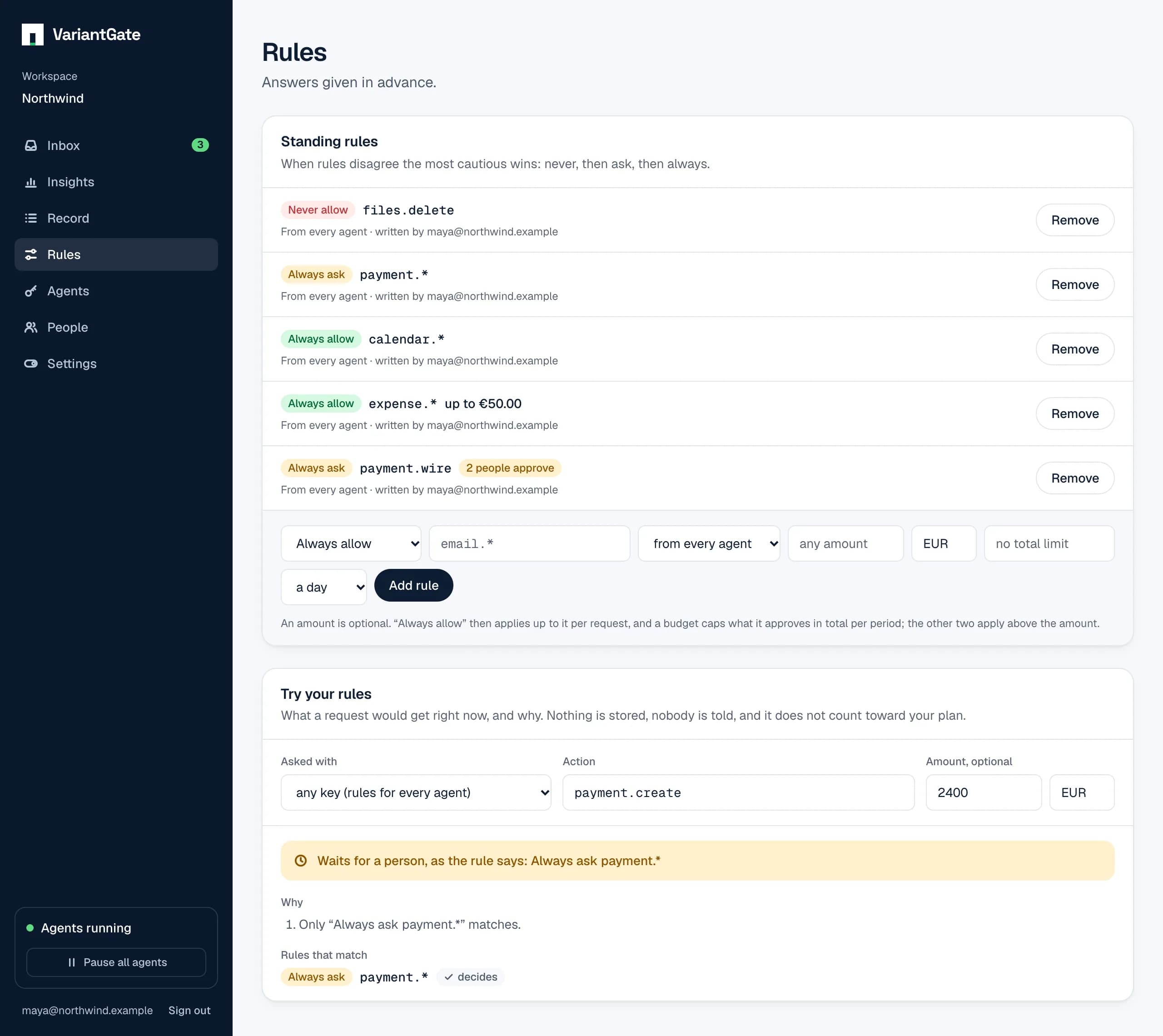
A rule is an answer given in advance, so only the calls that need judgment reach a person. Workspace owners write them under Rules.
The three kinds
- Always allow
- A matching request is approved at once.
- Never allow
- A matching request is denied at once.
- Always ask
- A matching request always waits for a person, whatever an allow rule says.
What a rule matches
- One action, such as
email.send, or every action with a given start, such asemail.*. A lone*matches everything. - Optionally one agent key only, instead of every agent.
Limits by amount
A rule can carry an amount, and a request can state one in its amount and currency fields. The limit always works in the cautious direction:
- Always allow, up to €50
- Approves a request that states €50.00 or less. A larger one is not covered by this rule, so it waits for a person unless another rule decides it.
- Always ask, above €50
- Sends a request above €50.00 to a person, whatever an allow rule says.
- Never allow, above €5,000
- Denies a request above €5,000.00 at once.
A request that states no amount, or one in another currency, cannot be compared with the limit. Then an “always allow” rule does not apply, and an “always ask” or “never allow” rule does. Leaving the amount out never gets an agent past a limit.
A limit narrows the rule it is on; it does not hold back what another rule allows. To make sure large amounts reach a person whatever else is allowed, write an “always ask” rule with the limit.
The amount is what the agent states. Make the code that pays use the approved amount, so the two cannot differ.
Budgets
An “always allow” rule can carry a budget: the most it may approve in total per day, week (from Monday) or month, in UTC. Once the requests it approved in the period add up to the budget, it sends the requests it covers to a person until the period starts again, and no other “always allow” rule can approve them past it.
- Always allow, up to €50, €500 a day
- Approves payments of up to €50.00 each until €500.00 has been approved today.
- Always allow, €2,000 a month
- Approves any payment that still fits in this month's €2,000.00.
Only what the rule approved counts; a payment a person approved does not use up the budget. Requests arriving at the same moment are counted one after the other, so together they can never go past it.
Two people for the big ones
An “always ask” rule can need two or three different people to approve, such as payments above €1,000. The request stays waiting until enough have approved; one denial stops it at once. Each person counts once, and the record lists everyone who approved.
Everyone approves the same thing. When the first person to approve changes the wording or lowers the amount, the others see that change, and an approval with any other changes is refused until they approve the same version or deny it.
When several rules cover a request, it needs the most approvals any of them asks for. An approval that needs more than one person cannot be remembered from the inbox.
Sending requests to the right person
An “always ask” rule can name who decides what it catches, such as refunds to Ana and Ben. Each request it catches is assigned to them: it is on top of their inbox under “Assigned to you”, and everyone else sees it marked “For Ana and Ben”, without Approve and Deny. The chat message names them too.
- Workspace owners can always decide a routed request, so it is never stuck when the people it is for are away or have left.
- When several routing rules catch one request, it goes to everyone any of them names.
- Someone who leaves the workspace is dropped from requests asked after they left. If nobody a rule names is left, its requests go to the owners.
Escalation
The same rule can say how long those people have, from one minute to a day. If nobody has decided by then, the request escalates: any member may decide it, the inbox marks it “Escalated”, and a notice goes to the workspace’s chat channel. The record shows how long a request waited before it escalated.
A request that expires before its escalation time never escalates, so keep the wait shorter than the time limit your agents give their requests (15 minutes unless they say otherwise). When several routing rules catch a request, it escalates only if all of them escalate, after the longest of their waits: escalating lets more people decide, so the cautious reading wins, as it does everywhere else.
Remembering an answer from the inbox
Owners do not have to come here to write a rule. Next to Approve and Deny on a request, choose how long the answer should stand: just this once, for the next hour, for the next day, or always. That writes a rule in your name for exactly that action from exactly that agent key.
- An approved amount is remembered as a limit: approving €40.00 “always” allows that action up to €40.00, not any amount.
- An action whose name contains
*cannot be remembered, since the rule would cover a whole family of actions. - If a more cautious rule already covers the request, remembering an approval would change nothing, so it is refused and nothing is decided.
- A rule for an hour or a day disappears from this page when it ends.
When rules disagree
The most cautious one wins: never, then ask, then always. A “never allow deletions” cannot be undone by an “always allow everything”, in whatever order they were written.
Trying your rules
With more than a few rules it is hard to tell what a request will get. Under “Try your rules” on the Rules page, choose a key, type an action and, if it moves money, an amount. The answer updates as you type: allowed at once, denied at once, refused, or waiting for a person, with the rule that decides it.
- Every rule that matches is listed, and the one that wins is marked.
- For a request that would wait: how many people must approve it, who it goes to and when anyone else may decide.
- For a rule with a budget: how much of it is used in this period, what is left, and whether the amount would fit.
- What holds a request back comes first. A revoked or expired key, an action outside what the key may ask for, or this month’s requests used up refuse it before any rule is read; a paused workspace or key lets it wait, but nothing is allowed.
The test goes through the same checks as a real request, with the same key, this month’s requests against the cap or plan limit, and the same rules, budgets and pauses as they stand at that moment. Nothing is stored, nobody is told, and it does not count toward your plan. “Any key” leaves out rules written for one key. Any member can try the rules, on every plan, including Free.
On the record
A request a rule decides is recorded in the name of the owner who wrote the rule, marked as decided by rule, and is as final as any other decision. Removing a rule later does not change what it decided.
What a rule cannot be tricked by
A rule for one agent goes by that agent’s key, never by the name the agent gives itself. An agent cannot rename itself into another agent’s “always allow”.