Notifications
Approve or deny from an email or a Slack, Microsoft Teams or Discord message, hear about waiting requests in your browser and on your phone, and get a weekly summary by email.
Nobody should have to watch an inbox. When a request needs a person, everyone who can decide it gets an email with Approve and Deny links, and a workspace connected to Slack, Microsoft Teams or Discord has it announced in a channel with the same two buttons.
Approve from an email
Everyone who may decide a request is emailed when it waits for a person. The email says which agent asks, what it wants to do, the amount if there is one, and how long is left, with two links: Approve and Deny.
- A link opens a page showing the request and one button. Nothing is decided until you press it, so a mail scanner that opens links cannot approve anything. You can add a note for the record there.
- The links are yours: the decision is recorded in your name, exactly as if you had decided in the inbox. Do not forward the email.
- Each link works once. Using one ends the other, and both stop working when the request is decided by anyone, when it runs out, or if you leave the workspace.
- Two-person rules still need two different people. An approval from an email counts as yours, and the request waits for someone else.
- While agents are paused, a decision from an email is recorded, but the agent still sees
allowed: falseuntil an owner resumes them.
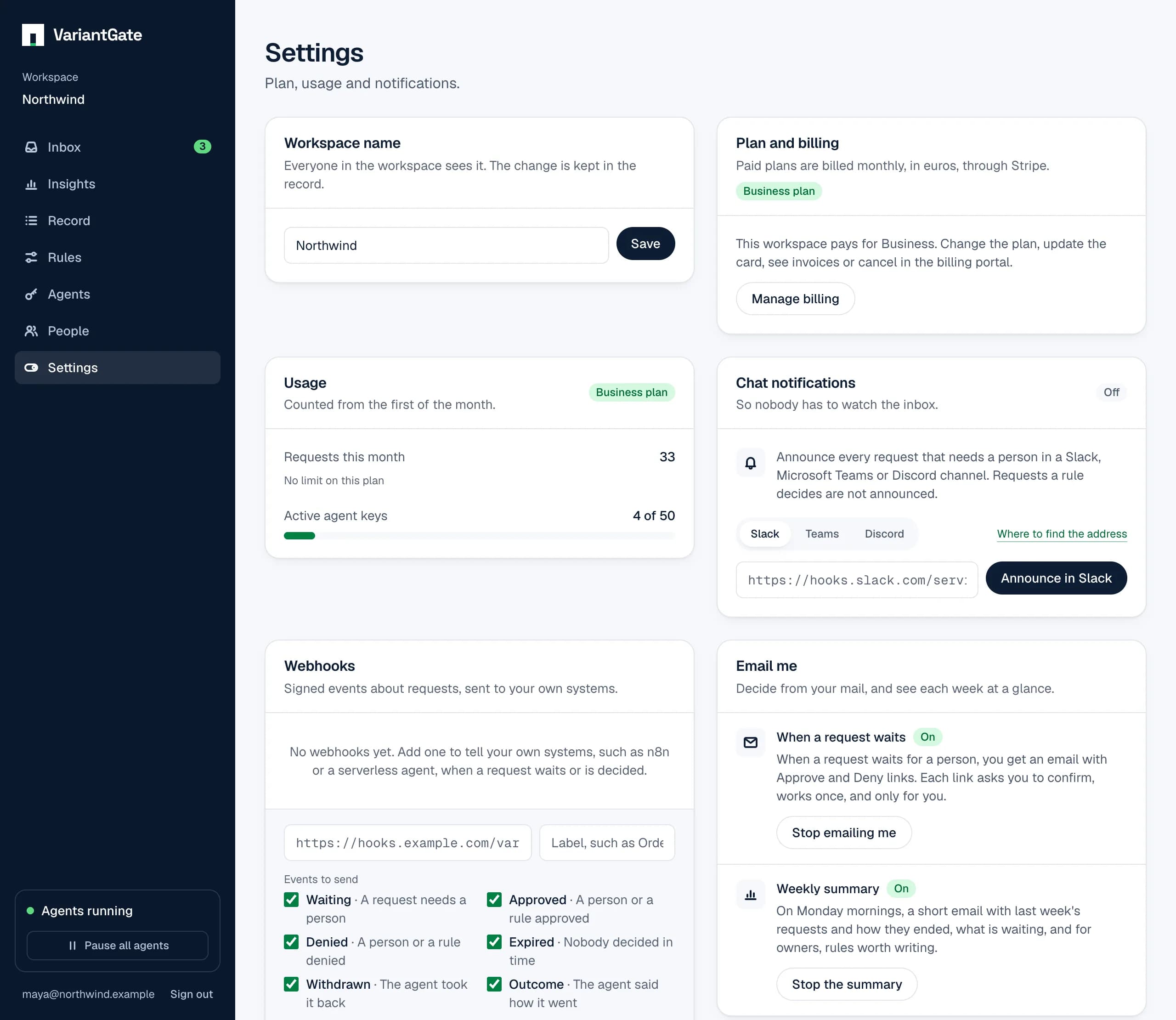
To stop these emails, open Settings and choose Stop emailing me. Each member chooses for themself, per workspace.
The weekly summary
Every Monday morning you can get one short email per workspace about the week before, so you keep an eye on your agents without opening the app. It is on every plan, Free included.
- How many requests agents made, and how they ended: approved by a person, by a rule, or by a remembered answer, denied, expired or withdrawn, each next to the week before.
- The median time a person took to decide, and the three agents that asked most, by the name of their key.
- How many requests are waiting now, with a link to the inbox, and a note when the workspace is paused.
- For owners, up to three rules worth writing from Insights, with a link to them.
It goes out on Monday from 07:00 Berlin time and covers Monday to Sunday in Berlin, the same for everyone whatever their time zone. A workspace where nothing was asked and nothing is waiting sends nothing. Unlike the emails above, it never holds what an agent wrote in a summary or details.
Owners get it until they turn it off; members get it once they turn it on, since a member who decides requests did not ask for more email by joining. To change it, open Settings and use Weekly summary under Email me. Every summary also ends with a link that turns it off in one click without signing in, and mail apps that offer an Unsubscribe button use the same link. It turns off only that summary, for you and that workspace, and can do nothing else.
Approve from chat
A channel is shared, so its buttons cannot know who pressed them. Approve and Deny open a page that asks you to sign in, if you are not already, then shows the request and a button to confirm. The decision is recorded in the name of whoever signed in.
A workspace announces in one chat. Only owners can connect it, under Settings, Chat notifications. Choosing another service replaces the first.
Turn on Slack
- In Slack, create an incoming webhook for the channel you want.
- In the app, open Settings, choose Slack under Chat notifications, and paste the webhook address.
- Choose Announce in Slack.
Turn on Microsoft Teams
Teams takes messages through a workflow. Microsoft has retired the old Office 365 connector webhooks, so their addresses are not accepted.
- In Teams, find the channel, select More options (…) next to its name, and choose Workflows.
- Search for the template Send webhook alerts to a channel and select it.
- Check the team and channel, then choose Save. When the workflow is created, copy the webhook link it shows.
- In the app, open Settings, choose Teams under Chat notifications, paste the link, and choose Announce in Teams.
The workflow belongs to the person who made it. If they leave your organisation it stops posting, so add a co-owner in Workflows.
Turn on Discord
You need the Manage Webhooks permission on the channel.
- In Discord, select the gear beside the channel’s name (Edit Channel), then Integrations, Webhooks, and New Webhook.
- Select the new webhook, name it, for example VariantGate, and choose Copy Webhook URL.
- In the app, open Settings, choose Discord under Chat notifications, paste the address, and choose Announce in Discord.
What is announced
- Every request that waits for a person: who asks, what for, and the action, with Approve and Deny buttons.
- Not requests a rule decides, since nobody needs to act on them. They are not emailed either.
Push to your devices
Under Settings, turn on Push to this device. When a request waits for you, a notification appears on that device even with no VariantGate tab open. Clicking it opens the request. If someone decided it first, you see what became of it.
- A notification names the agent and the action, such as
email.send. The summary, the details and the amount stay in the inbox, behind sign-in. - It goes to everyone who may decide the request. A request a rule sends to certain people goes only to them and the owners, as its emails do.
- Each person turns it on per device and per workspace. Settings lists your devices by browser and system, and removes any of them.
- Push works in Chrome, Edge, Firefox and Safari. A device whose browser stops taking notifications is removed on its own.
On your phone
Open the inbox on your phone and add it to the home screen (Share, then Add to Home Screen on an iPhone; the menu, then Install app on Android). It then opens full screen like an app, ready to approve with a tap.
On an iPhone or iPad, push needs iOS or iPadOS 16.4 or later, and works only in the app on the home screen, never in a Safari tab. Open VariantGate from the home screen, then turn on Push to this device under Settings. On Android, push works in the browser and in the installed app.
To your own systems
From Pro up, a workspace can also send signed events to an address of your own, so a script, a workflow tool or a serverless agent hears about requests without asking. See Webhooks.
In your browser
An open inbox tab shows how many requests are waiting in its title, such as (3) Inbox. A server that does not send push notifications offers notifications in this browser instead, under Settings: they appear while the inbox tab is open in the background.
How the address is handled
Only webhook addresses from Slack, Teams workflows and Discord are accepted, over https and on the services’ own domains. The address is stored but never shown again. What an agent wrote is posted as plain text, or in Discord as a code block, so a request cannot put a link or a mention in your channel.
A device's push address is kept the same way. Only the push services of the browsers themselves are accepted, and each notification is encrypted so that only that device can read it.