Teams
Share a workspace: join links, owners and members, changing roles, and deleting a workspace or your account.
Inviting people requires Team or above. Free and Pro each allow one person. Removing people and withdrawing invitations remain available after a downgrade.
A workspace can be shared, so the right person decides and nobody is the only one who can.
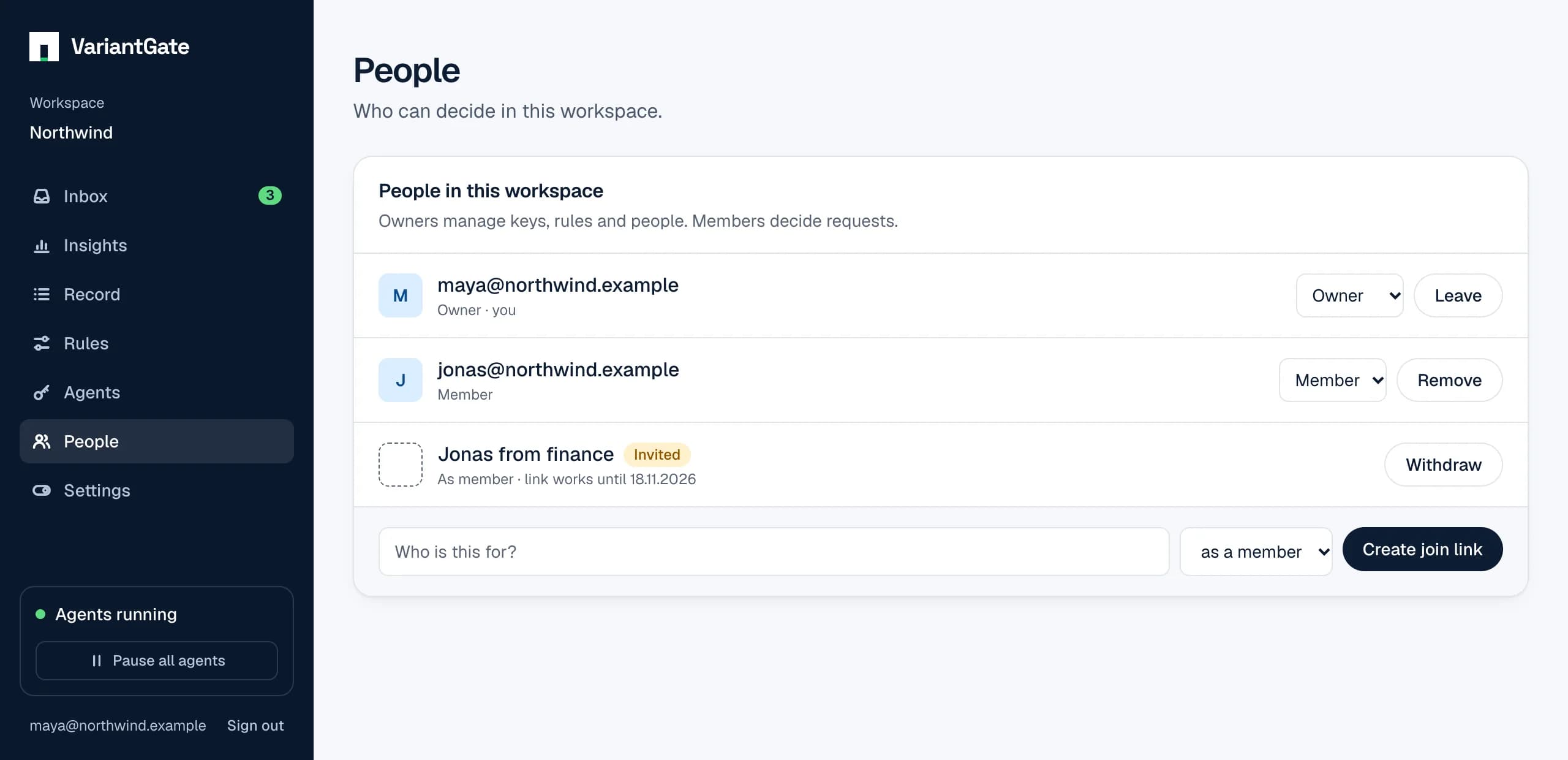
Inviting someone
- An owner creates a join link under People and passes it on.
- Whoever opens it while signed in joins, with the role the owner chose.
- A link works once, for seven days, and can be withdrawn.
- The note on an invitation is a reminder for you. It is never checked against who accepts: having the link is what lets someone in, so send it only to the person it is for.
Only a hash of the link’s secret is stored, and the secret sits after the #, which browsers do not send to servers. A wrong, used, withdrawn or expired link all answer the same way, so a link cannot be probed. An owner can do the same from a script:
curl -X POST https://api.variantgate.com/v1/workspaces/WORKSPACE_ID/invitations \
  -H "authorization: Bearer $SIGNED_IN_TOKEN" \
  -H 'content-type: application/json' \
  -d '{ "note": "Ana, finance", "role": "member" }'

# The answer holds "secret", shown once. The join link is:
# https://variantgate.com/join#SECRET
Roles
There are two, owner and member. Owners can do everything a member can, and manage the workspace:
- Decide requests
- Owners and members.
- Decide a request a rule sent to named people
- Those people and owners. Members too, once it escalates.
- Pause every agent, or one
- Owners and members.
- Resume after a pause
- Owners.
- Write and remove rules
- Owners.
- Try the rules
- Owners and members.
- Remember an answer from the inbox
- Owners, since it writes a rule.
- Create and revoke agent keys
- Owners.
- Invite and remove people
- Owners. Anyone may leave.
- Make someone an owner or a member
- Owners, themselves included, while another owner remains.
- Rename the workspace
- Owners.
- Delete the workspace
- Owners.
- Turn chat announcements (Slack, Teams or Discord) on or off
- Owners.
- Add, test, turn off and remove signed webhooks
- Owners. Members see them and their deliveries.
- Choose the plan and pay, and set the monthly request cap
- Owners. Members see the plan.
- Turn their own emails, weekly summary and push on or off
- Everyone, for themselves only.
- Delete their own account
- Everyone, for themselves only.
An owner changes someone’s role under People, with the menu beside their name, or from a script. The change is kept in Record under Workspace changes. Making the last owner a member is refused with 409 last_owner, even when two owners try it on each other at the same moment.
curl -X PUT https://api.variantgate.com/v1/workspaces/WORKSPACE_ID/members/USER_ID/role \
  -H "authorization: Bearer $SIGNED_IN_TOKEN" \
  -H 'content-type: application/json' \
  -d '{ "role": "owner" }'
Accepting a join link while already in the workspace is refused with 409 already_member, so a link cannot change a role.
The right person for each request
An “always ask” rule can send what it catches to certain people, such as refunds to whoever handles support, and hand it to everyone if they have not answered in time. Anyone else gets 403 not_assigned until then, with a message naming who it is for. See Rules for how routing and escalation work, and the refunds guide for a worked example.
Two people for one decision
An “always ask” rule can need two or three different people to approve. The same person approving twice gets 409 already_approved, so a team of one cannot meet it alone. Make sure the workspace has enough people who can decide what the rule catches.
Leaving and removing
An owner can remove anyone, and anyone can leave. A workspace always keeps at least one owner (409 last_owner otherwise), so it can never end up with nobody able to manage it. Requests a rule sent to someone who left stay with the owners, who can always decide them. Decisions people made before they left stay on the record under their name.
On the Team and Business plans paid per person, each person is a seat, and joining or leaving updates the count. A workspace that pays per request has no seats.
Deleting a workspace or your account
An owner deletes a workspace under Settings, Deleting, by typing its name. Its requests, decisions, record, rules, keys, invitations and settings are deleted for good, everyone in it loses access, and its agent keys stop working at once. A paid plan is cancelled with Stripe first, with a final invoice for anything used and not billed yet, such as requests on a per-request plan; the rest of a month already paid for is not refunded. If Stripe cannot cancel it, nothing is deleted and you get 502 billing_unavailable.
Anyone can delete their own account in the same place, by typing their email address:
- Workspaces only you are in
- Deleted with everything in them, as if you deleted each one.
- Workspaces you share
- You leave them. Your push devices, your email settings, your weekly summaries and join links you made that nobody has used go.
- What you did in a shared workspace
- Stays, under your email: your decisions, approvals and changes in its sealed record, and the rules and agent keys you made, which keep working until an owner removes them.
- Your sign-in
- Deleted last, with its sessions.
While you are the only owner of a workspace others are in, deleting your account is refused with 409 sole_owner, naming the workspace: make someone else an owner, or delete it, first. The record keeps what you did because it belongs to the workspace, and changing it would break its seals; see Record. Where a server cannot delete accounts itself, the page says whom to write to instead.
Several workspaces
One person can belong to up to 20 workspaces and switch between them in the side rail. Each workspace’s agents, rules and record are kept apart from every other’s, and a workspace you do not belong to looks exactly like one that does not exist.
An owner can rename a workspace under Settings at any time. Everyone in it sees the new name, and the rename is kept in Record under Workspace changes.
For signing in through your company’s identity provider, see Single sign-on.