Approval policy templates
A starting policy for seven common kinds of AI agent: which actions run on their own, which wait for a person, and which never happen, with the reason for each. Add one to your workspace as it is, or change it in the policy generator first.
Customer support agent
A support agent reads messages written by strangers and can change accounts and send money back.
On its own: 1 · Up to a limit: 1 · Asks a person: 2
Finance agent
A finance agent pays suppliers, refunds customers and buys what the team needs.
On its own: 1 · Up to a limit: 2 · Asks a person: 2
Coding agent
A coding agent runs commands, ships code and touches databases.
On its own: 1 · Asks a person: 4 · Never: 1
Sales agent
A sales agent researches accounts, books meetings and writes to prospects.
On its own: 2 · Asks a person: 3
IT service desk agent
A service desk agent answers tickets, resets access and cleans up accounts.
On its own: 1 · Asks a person: 4
HR and recruiting agent
An HR agent schedules interviews, moves candidates along and answers staff.
On its own: 2 · Asks a person: 4 · Never: 1
Marketing agent
A marketing agent drafts posts, sends campaigns and buys small things such as ads or tools.
On its own: 1 · Up to a limit: 1 · Asks a person: 3
Legal and contract agent
A legal agent reviews contracts, answers from matter files and sends drafts and notices.
On its own: 1 · Asks a person: 3 · Never: 2
Procurement agent
A procurement agent raises orders, renews contracts and writes to suppliers.
On its own: 1 · Up to a limit: 1 · Asks a person: 2
Data and analytics agent
A data agent queries the warehouse, sends numbers to people, builds dashboards and writes back to tables.
On its own: 1 · Asks a person: 3 · Never: 2
E-commerce operations agent
An e-commerce agent changes prices, makes discount codes, edits listings and adjusts stock across a whole catalogue.
On its own: 1 · Up to a limit: 1 · Asks a person: 4 · Never: 1
How adding a template works
- Open a template and read what each rule does and why.
- Press “Add these rules to my workspace”. You sign in or sign up first if you need to.
- In the workspace, check the list, pick every agent or one agent key, and add them. Nothing is added before that.
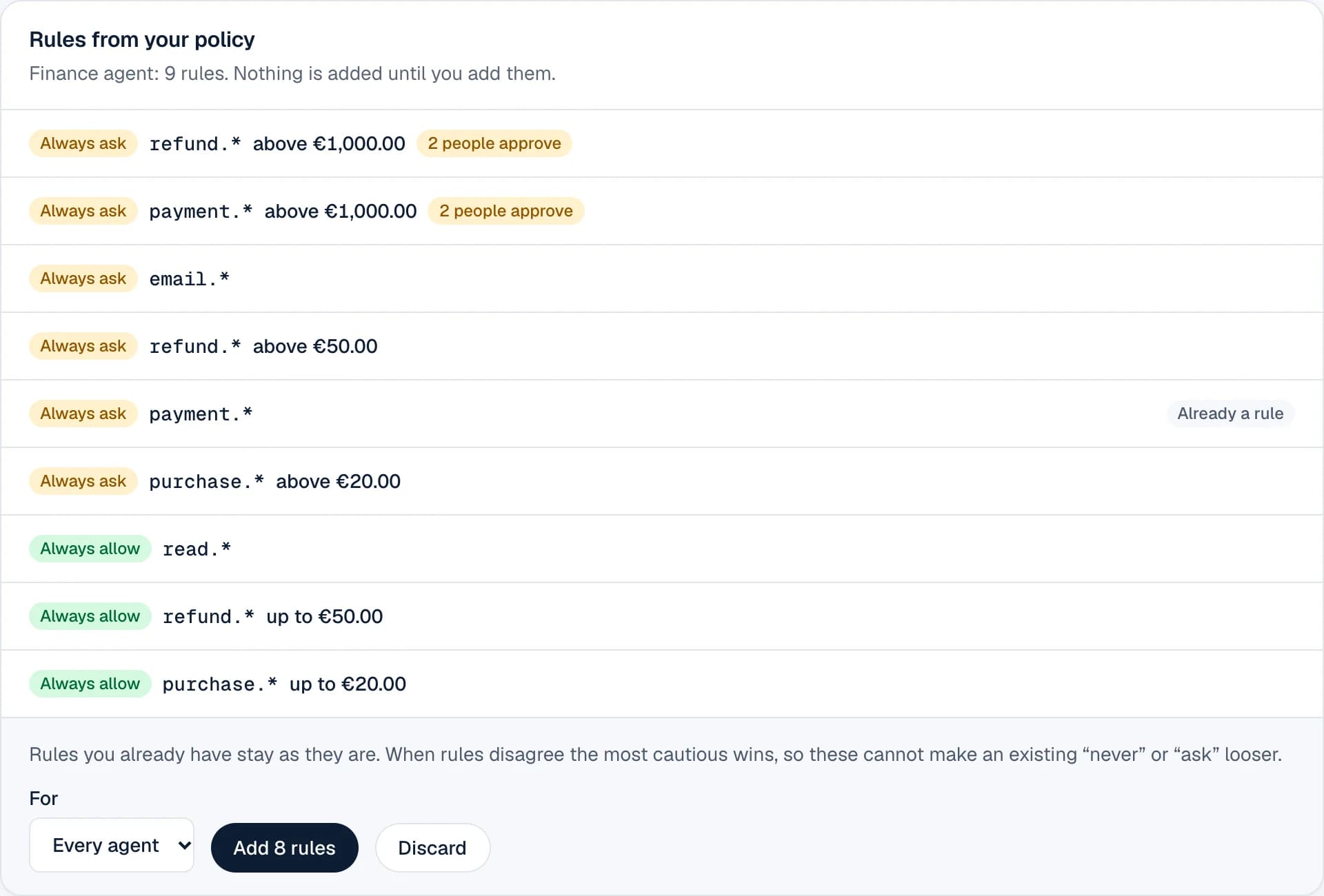
Every “never” and “ask” goes in before any “allow”, so a workspace is never looser halfway through, and the rules you already have stay. Rules need Pro or above, and two-person approval needs Team; on Free every request waits for a person, which is stricter. Only a workspace owner can add rules. How rules work